The TUI
For anyone driving the fleet from a terminal. After this page you will know the layout, the two ways into a session, how tabs and panes work, and where to change any key binding.
The af terminal UI is the home base for running agents. It's built to keep you
in one screen: a list of everything running on the left, a live look at any
agent on the right, and a keystroke to dive into any of them full-screen.
Launch it from inside a git repository to open scoped to that project, or from anywhere to open on your project registry and pick one:
Run outside a git repository and af still opens — on the project registry, so
you can select a known project or add one.
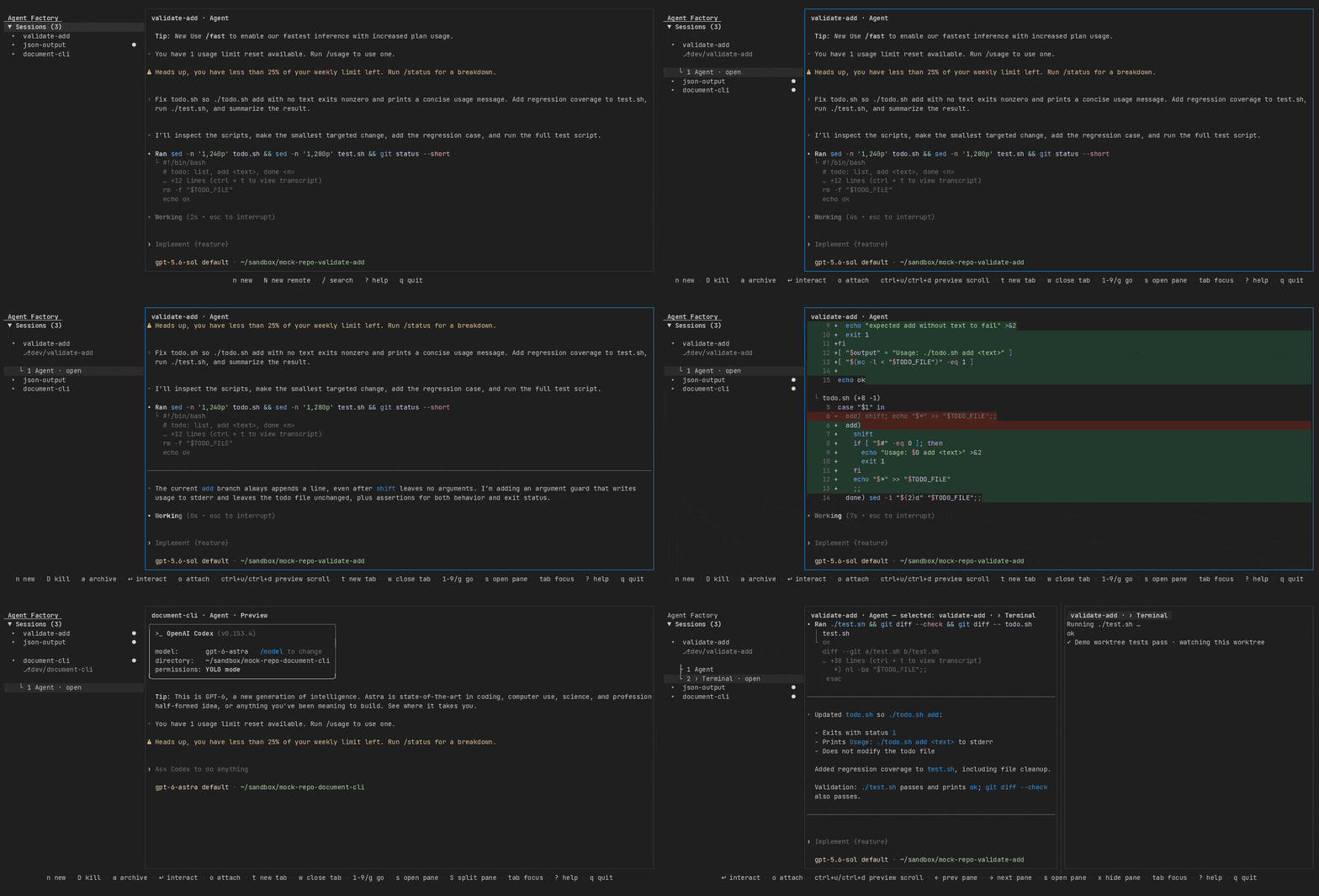
Demo: MP4 · WebM ·
GIF. Nothing in those panes is a transcript — three
real Codex sessions are working in three AF-owned worktrees, recorded by
scripts/container/record-demo.sh. The web client's own demo is on the
home page; see Demo assets for how both are
produced.
Layout
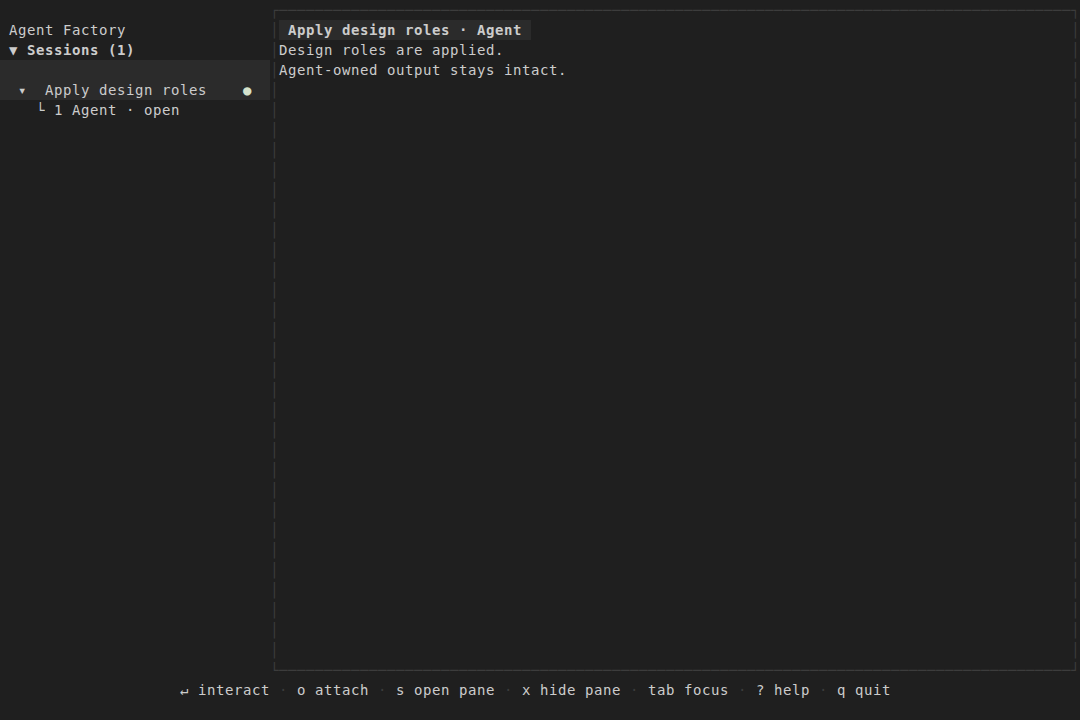
- Sidebar. Every session, with a live status indicator (waiting on
you, hit a usage limit, dead-and-being-recovered). Sessions are grouped and
navigable with the arrow keys or
j/k. - Agent tab. A snapshot of the selected agent's terminal, updated as it
works — so you can follow progress across several agents without attaching to
any of them. Toggle it with
s(open) andx(hide).
An idle row also says why it's idle, as far as the daemon can mechanically
tell — usage limit, process exited, restore gave up after 6 attempts: …,
no change after delivery, pane changed · 12m ago — next to its branch name.
The detail reports mechanically established facts only: process and restore
state, prompt-delivery evidence, and when the pane's rendered bytes last changed.
No reason ever claims the agent finished, asked a question, or is
wedged — those can render identically in a terminal, so af reports the
observation and leaves reading the pane to you (#3168). The full idle_reason
vocabulary is in the
HTTP API guide.
Interacting with a session
There are two ways in, split deliberately:
↵(Enter) — interact in-pane. Type to the selected agent directly inside the layout, without a full-screen takeover.ctrl+]returns you to navigation mode.o— attach full-screen. Hand the whole terminal to the session's tmux. The tmux detach key returns you to the sidebar. The agent keeps running either way.
Accounts
On the new-session naming form (n), press ctrl+o to choose an account for
the selected agent. The picker preselects the project default and labels it
project default. Register and log in before creating the session; account
names belong to one agent, so changing the agent changes the choices.
See Accounts for login, project defaults, clearing a
default, and the boundaries on handoff and automatic switching.
Tabs
A session isn't limited to its agent. Each one can hold as many tabs as you make, all running in the same worktree (there used to be a nine-tab cap matching the 1-9 jump keys; it was removed in #3023):
topens a new-tab picker. Choose Terminal for a shell in the worktree, or VS Code for a browser editor on that worktree (the TUI shows its placeholder; open the web client to use the editor).1–9jump straight to a tab by number.gopens a prompt that jumps to any tab by number or name — past the ninth, or to the one calleddeploy.wasks to delete the focused tab and names its session. Pressyto confirm orn/Escto cancel. The agent tab stays; use Delete session for it. Hiding a pane leaves its tab available; deletion requests runtime cleanup.
Tabs persist across restarts, and each is a real process the daemon tracks. (Remote sessions are more limited — see Remote hooks.)
For a named long-running command or a web preview with a URL/port, use
af sessions tab-create; those kinds need input beyond this two-item picker.
Working with results
eruns the repo's worktree hooks./searches;?shows the full, live help overlay.
Sessions, tasks, and other surfaces
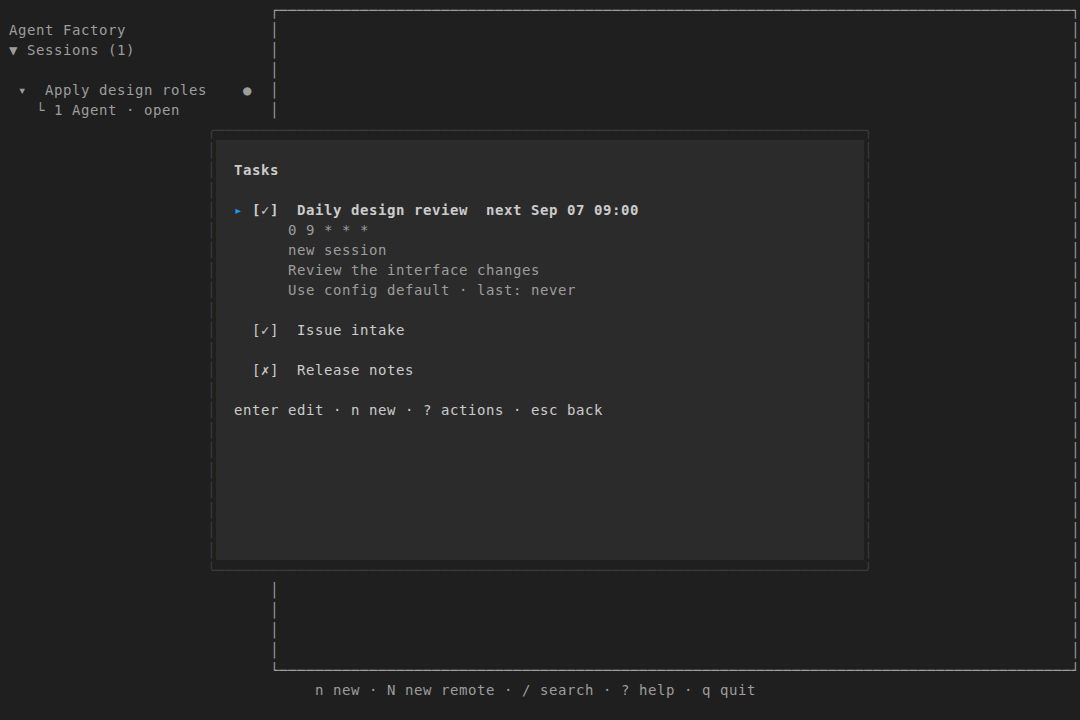
nopens the creation form; usectrl+rto choose its backend. The legacyNshortcut is retired. An explicitly configured[keys].new_remotebinding remains accepted and opens the creation form with the backend field focused; it does not force a remote backend.aarchives the selected live session as the default done action, behind a confirmation — on an archived, Lost, or Dead row it does nothing.rrestores an archived, Lost, or Dead session.Dpermanently kills a session, removing only the worktrees and branches af owns — user-owned resources stay; uncommitted or unmerged work in af-owned resources may be lost.mopens the tasks view to manage scheduled and event-driven automations.
cretries a session that's parked on a usage limit.sopens the selected tab as a workspace pane;Scommits an active preview as another pane.Left/Rightmove focus between open workspace panes when a pane has focus.ctrl+u/ctrl+dpreview-scroll the current tab. In a full-screen attach the child program owns input and scrolling; these only work in AF's navigation mode.ctrl+pswitches the active project without restarting the TUI. It works from navigation only — while you're attached to a pane,ctrl+pis forwarded to the running program, so detach (ctrl+]) first.
Key bindings are yours
Every binding above is the default. You can rebind almost all of them in the
[keys] table of your config — a handful of structural keys (Enter, Tab,
Shift-Tab, Esc, ctrl+], the 1–9 tab jumps) are reserved. Run:
to print every action with its effective binding (default or your rebind). See Configuration → key bindings for how to set them, including how to restore pre-#1027 keys, and the CLI reference for the command.