The web client
Open the client, choose a project, create a session, and follow its work without leaving your browser. This tour walks through Sessions · Tasks · Config using stills from a recorded demo. The demo agent's output is scripted; the controls are the web client's own.
Open it in a browser
With the daemon running, open http://127.0.0.1:8443 on the same machine.
The default listener needs no configuration or token. If nothing answers,
af daemon status reports whether the daemon is running without starting it.
Run af in a git repository to open the TUI and start the daemon. A port conflict
can leave the daemon running without the web listener; check its logs if the
browser still cannot connect. For automatic startup at login, use
af daemon install.
For another machine or a shared host, read Beyond localhost after the tour. Remote daemon access is the full setup guide.
A tour of the app
Sessions view
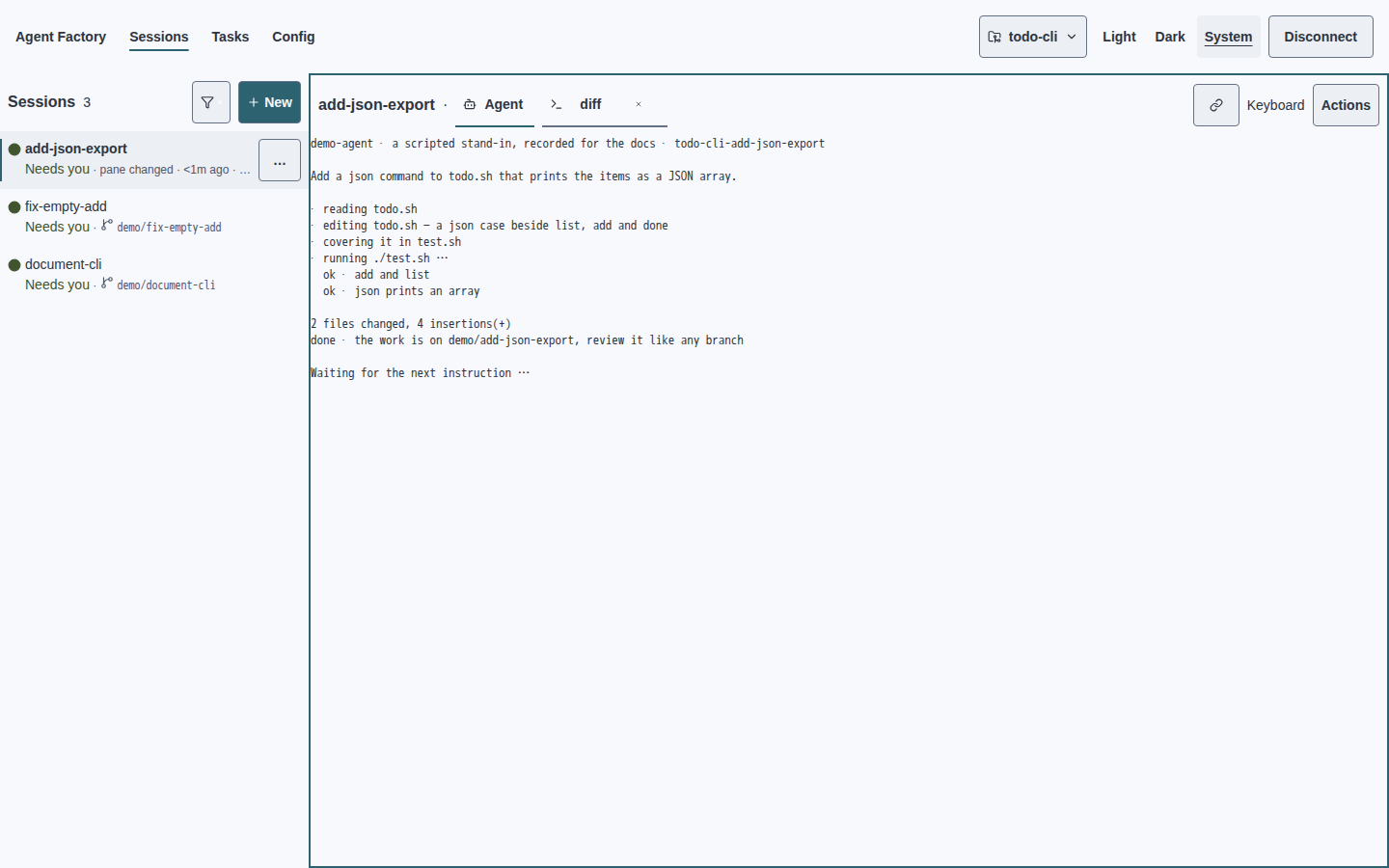
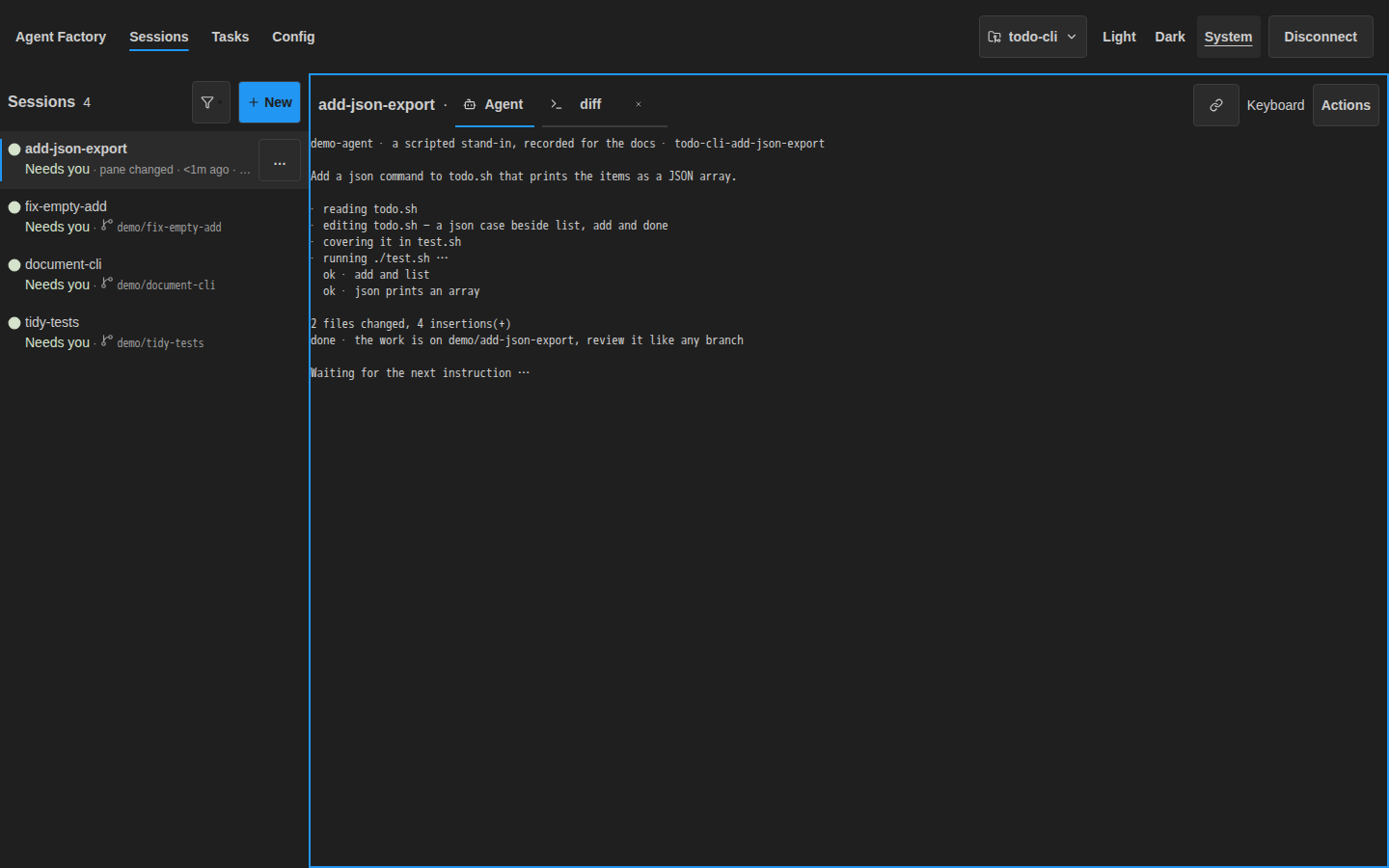
The app bar's Sessions, Tasks, and Config buttons switch views. The project switcher scopes Sessions and Tasks to one repository and remembers that choice across reloads. Its menu shows session and working counts per project. Light · Dark · System chooses the browser theme; System follows your operating system. Disconnect forgets the browser's saved daemon token and returns to the login screen. Install app, when offered by the browser, opens its installation prompt; its × dismisses the offer. See Install it as an app.
If the project list is empty, choose + Add project in the switcher. Browse the
filesystem on the daemon's host: click directories to descend, Up for the
parent, and Home for its home directory. Use on a git checkout fills
Repository path; you can also type an absolute or ~-prefixed path. Click
Add project to register it. Cancel leaves it unchanged. The switcher's
Delete project asks for confirmation, then archives ordinary live sessions
(restorable) and tears down in-place or external-worktree sessions, including
the root agent, removing their session records (not restorable). Those in-place
worktrees, branches, and uncommitted changes stay where they are. It removes the
project registration while preserving the real repository.
The rail lists the selected project's sessions. Click a row to select it and attach its terminal. The main pane shows that session's title and tabs. The rail count is the number of rows currently shown. The root agent is pinned first, then live sessions oldest first, then archived sessions newest first.
Read the state words alongside the glyphs, rather than relying on color:
| Rail signal | Meaning |
|---|---|
| Filled circle | Ready; read the accompanying state and idle detail for the next action |
| Hollow circle | The agent process is dead |
| Dashed circle | The session is lost |
| Diamond | A usage limit has been reached |
| Archive icon and dimmed row | Archived session |
| Working label | Work is in progress; the status dot is omitted |
The secondary line includes the branch when available, and the selected row adds
idle detail, such as Needs you · pane changed · 12m ago. These are observations of terminal activity,
not a claim that the agent finished or asked a question. Diagnostic title prefixes
such as [lost], [deleting], [limit], and [remote] add context.
The funnel opens state checkboxes: Needs you · Working · Waiting on a limit · Broken · Archived. Archived sessions start hidden. The filter applies inside the selected project and is remembered by this browser; a dot on the funnel marks a non-default filter. If it hides everything, the empty state reports hidden rows.
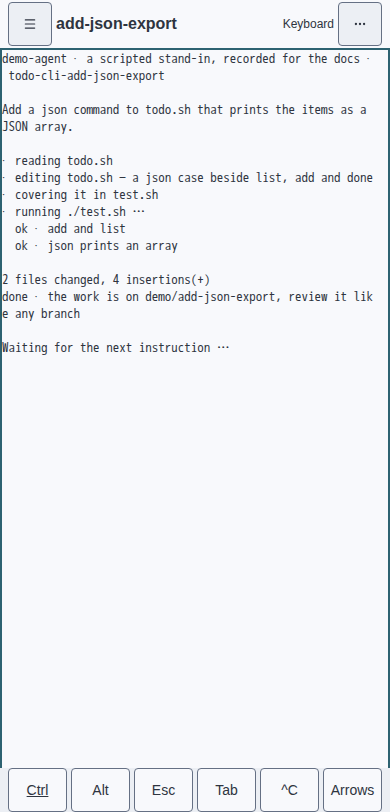
On a phone, selecting a terminal gives it the screen: one compact row holds Toggle sessions, the truncating session title, static Keyboard state and …. The menu contains project choices, Sessions · Tasks · Config, Light · Dark · System, Disconnect, session actions and tabs. Escape closes it and returns focus. Toggle sessions opens the rail drawer; selecting a session or tapping its backdrop closes it. Opening the drawer leaves the terminal in place at the same size. Tasks and Config keep their phone layouts.
While the terminal owns the keyboard, one bottom row provides Ctrl, Alt, Esc, Tab, ^C and Arrows, with 44px targets. Arrows replaces that row with arrow keys and More keys. Tap Ctrl or Alt to modify the next key, including the bar’s own keys; double tap to lock (shown by ▸ and an outline), then tap again to release. IME composition is sent unchanged and leaves armed modifiers for the next key. Keys retain terminal focus and the terminal resizes above the soft keyboard. With that keyboard closed, the terminal occupies at least 85% of the visual viewport at the verified phone widths.
Share a link to a session. Click the link icon (Copy link) beside the selected session's
header title to copy its link, or copy the address bar: it follows your selection.
Links use the stable session ID (/#/session/<id>) and open on this daemon,
switching projects and revealing Archived when needed. Login preserves the target;
a missing session shows a notice and returns to the dashboard.
| Control | Action |
|---|---|
| Copy link | Copy the selected session's URL to the clipboard |
Create a session
Click + New in the rail. If there are no projects, add one through the project switcher first; creation stays disabled until a project is available.
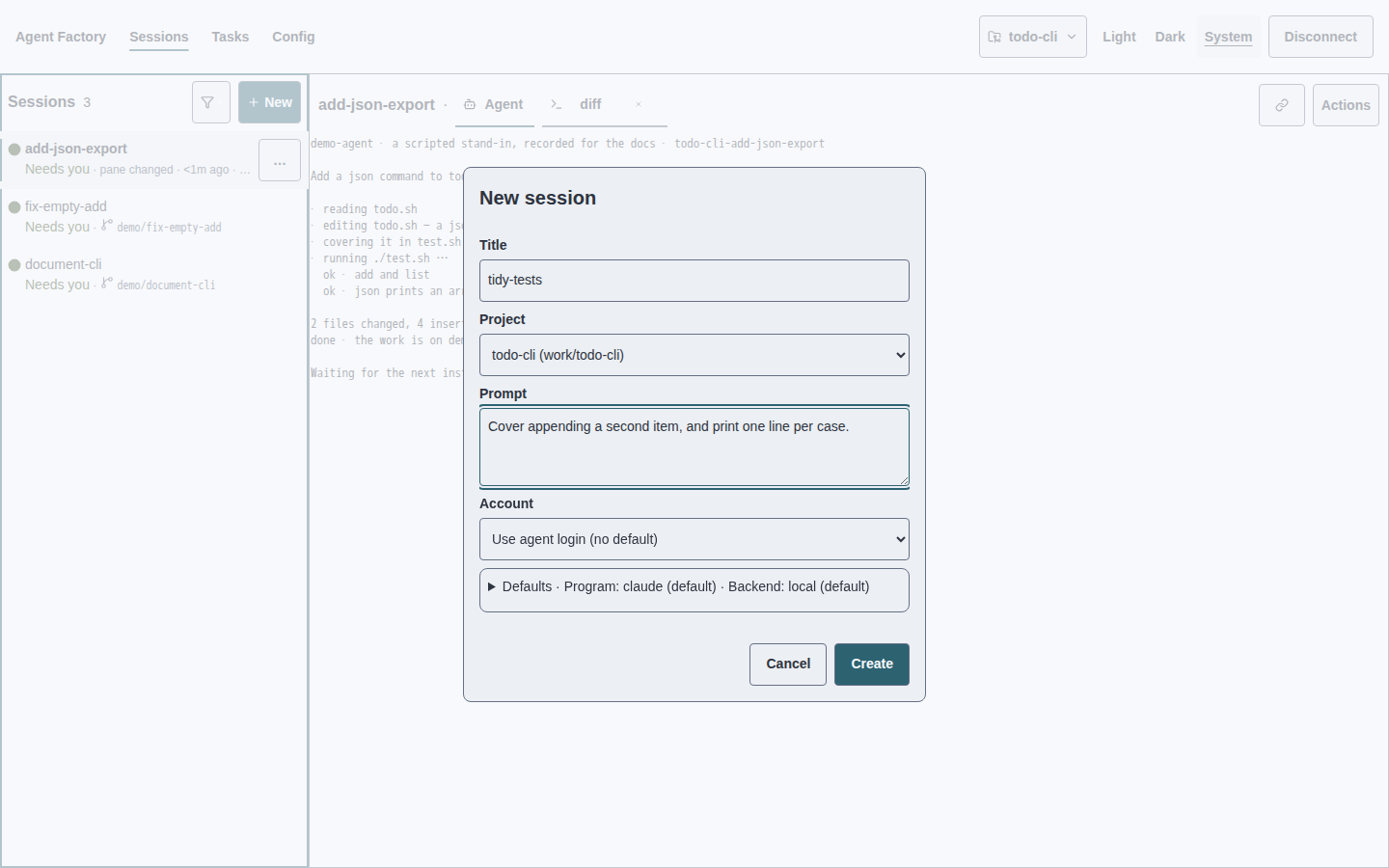
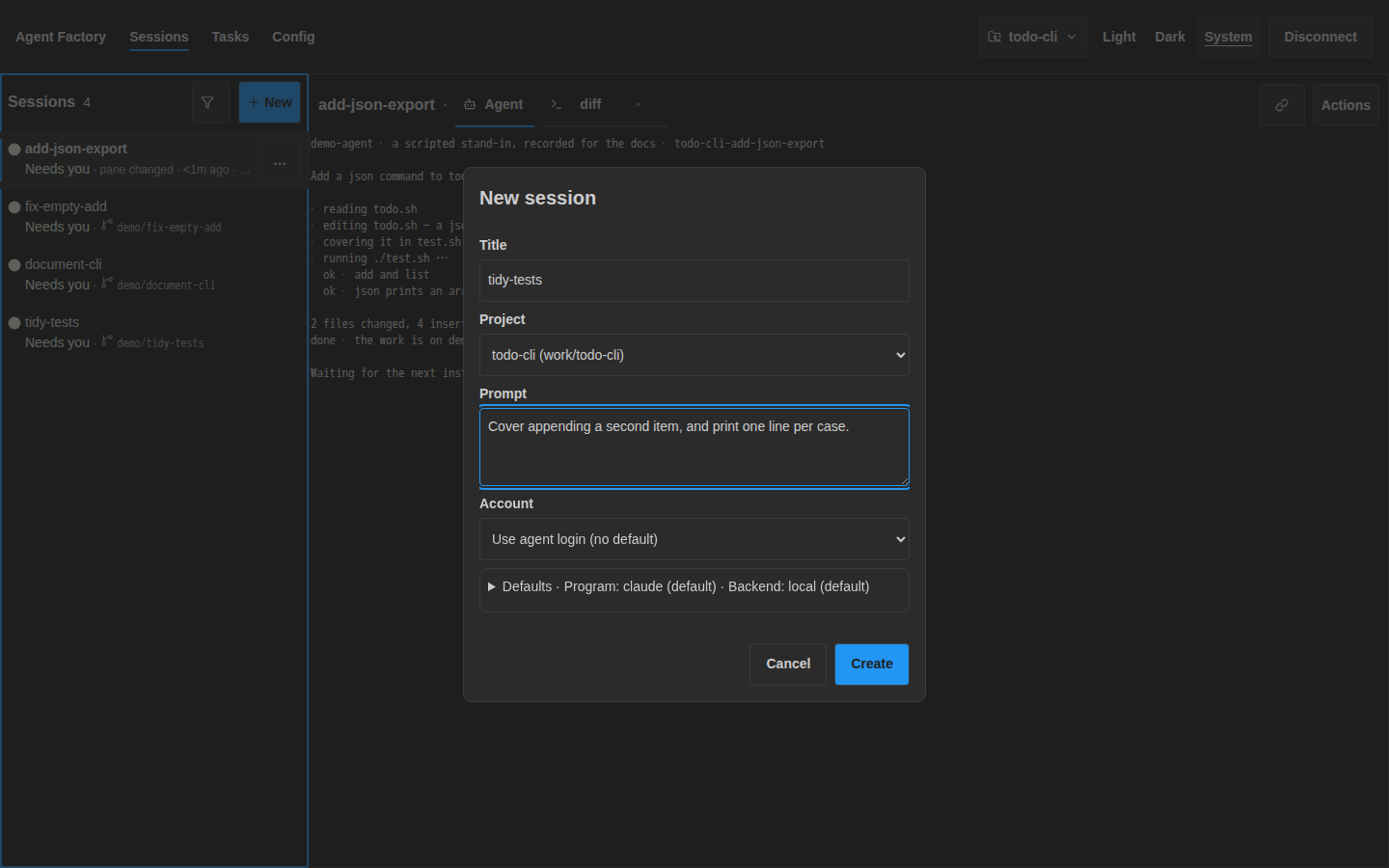
| Field | What to choose |
|---|---|
| Title | A session name. Leave it empty to use the suggested name, if one has loaded. |
| Project | The repository to work in; starts with the selected project. |
| Program (Defaults) | The agent to run, or Repo default. Choices come from the project's agent catalog. |
| Backend (Defaults) | Where the session runs, or Repo default. Unavailable choices explain why they cannot be used. |
| Account | A registered identity for the selected agent. The project's default is preselected when offered; changing Program refreshes the account list. Use configured default (…) inherits the named default; Use agent login (no default) uses the agent’s own login when none is configured. Use daemon default leaves resolution to the daemon. These rows send no account override. |
| Prompt | Optional initial instructions to send to the agent. |
An account without a credential is labelled but still selectable. A
registration-only account explains why it cannot scope a session and blocks
creation if selected. Register and sign in to accounts in Config.
Create checks required fields in the browser; missing values show inline
errors and leave the form and its values open. After those checks pass, the modal
closes before sending the request. A pending row tracks creation, then the session
opens attached on success. A confirmed daemon refusal reopens the retained form
with an inline error when no newer form is open; otherwise it shows a notice.
If the outcome is uncertain, check the session list before retrying. Cancel, the backdrop, or Escape
closes the form before submission.
Watch and interact with the agent
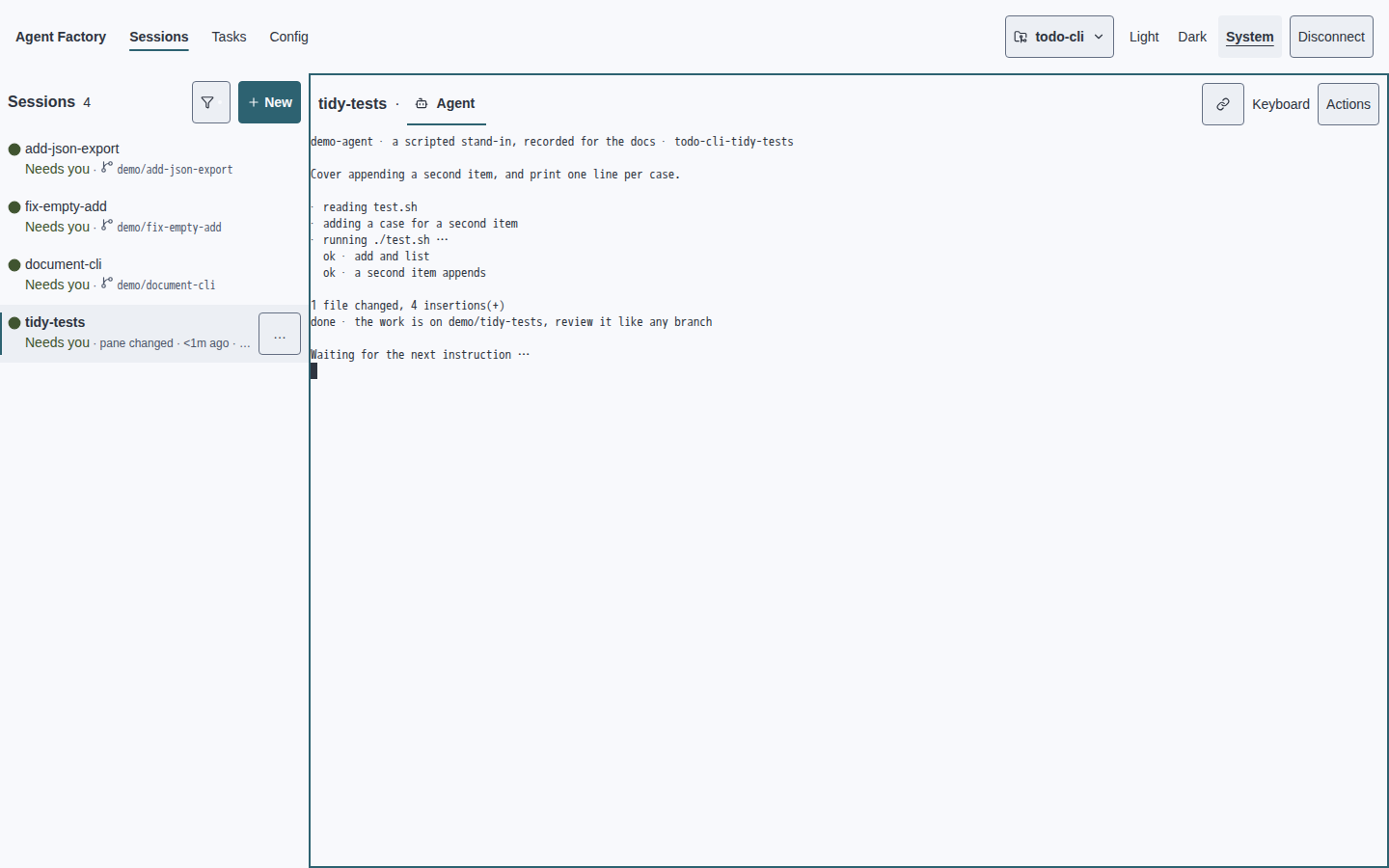
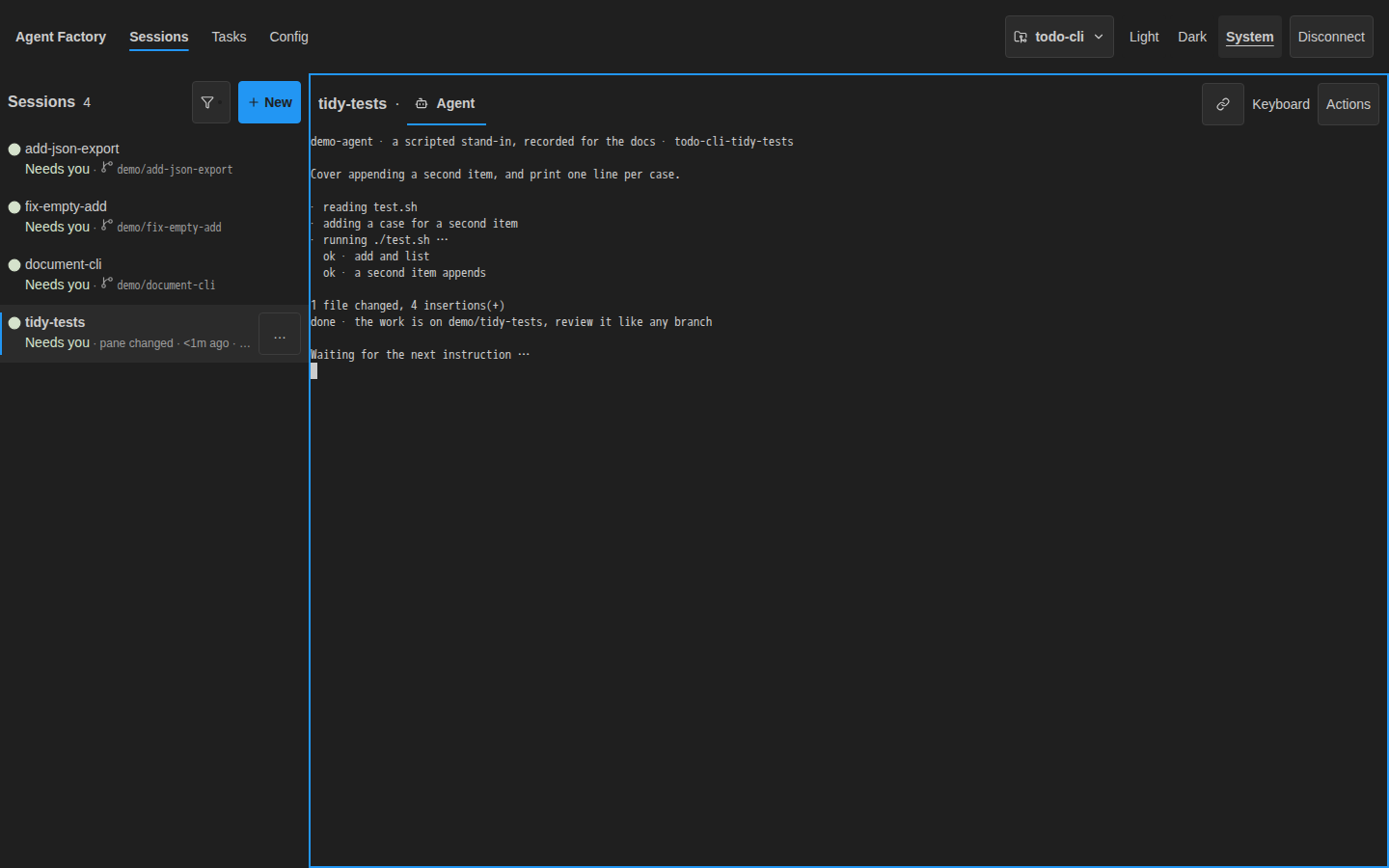
The Agent tab streams the agent's terminal output. Click the terminal to give
it keyboard focus and type a follow-up prompt. While attached, ordinary keys go
to the agent, including Escape; the agent decides what they do. Press ctrl+]
to return keyboard focus to navigation. Clicking the rail or opening its mobile
drawer also returns to navigation.
With navigation focused, j and k (or the arrow keys) move the rail selection
without attaching. Enter attaches the selected session. The pane's accent border
marks the pane you are driving. See the keyboard reference
for tab and view navigation.
The pane header's Retry limit appears for a session waiting on a usage limit and requests another attempt. If an agent or account handoff could not confirm mission delivery, inspect the pane first; the same place shows Retry handoff as the explicit override while automatic redelivery stays suppressed. If that retry delivers the mission while its final disk settlement remains pending, the web keeps a confirmed-mutation warning on screen because the mission has already landed and must not be retried. Open the pane header’s Actions menu (shown as … on a phone) for Handoff, which appears when the session supports swapping agents in place. Choose New agent in its modal and confirm Hand off to stop the current agent and continue with the replacement. A limit-blocked local session can offer both; see usage limits.
Open a rail row’s … menu for Archive and Delete session. Other actionable rows reveal the menu on hover or keyboard focus. Archive and Delete session each open a confirmation:
- Archive tears down a local session's terminal and moves its worktree into the archive. For Docker, SSH, or remote-hook sessions, it pushes the branch to origin and tears down the remote sandbox; there is no local worktree to move.
- Restore, in the archive action's place on an archived row, moves a local worktree back and respawns the agent. A local restore starts at once, with no confirmation: a dialog shows its progress and offers Retry restore if the daemon refuses it. For a remote session, it asks for confirmation first, then provisions a fresh sandbox from the pushed branch and relaunches the agent; the old sandbox's conversation does not return. Reveal Archived in the filter first.
- Delete session permanently tears down the session and removes its record. It removes Agent Factory-managed worktrees and deletes only branches created by Agent Factory. In-place or external worktrees and pre-existing branches are preserved. The daemon-managed root is the exception: deleting it interrupts scheduled and watch-task delivery to the root session until it self-heals (usually about two minutes) or the daemon restarts; other scheduled and watch tasks keep running. Disable it in configuration to keep it down.
Pending creation rows have no destructive actions. An action belongs to the row whose button you clicked, even when a different session is selected.
Review the work in another tab
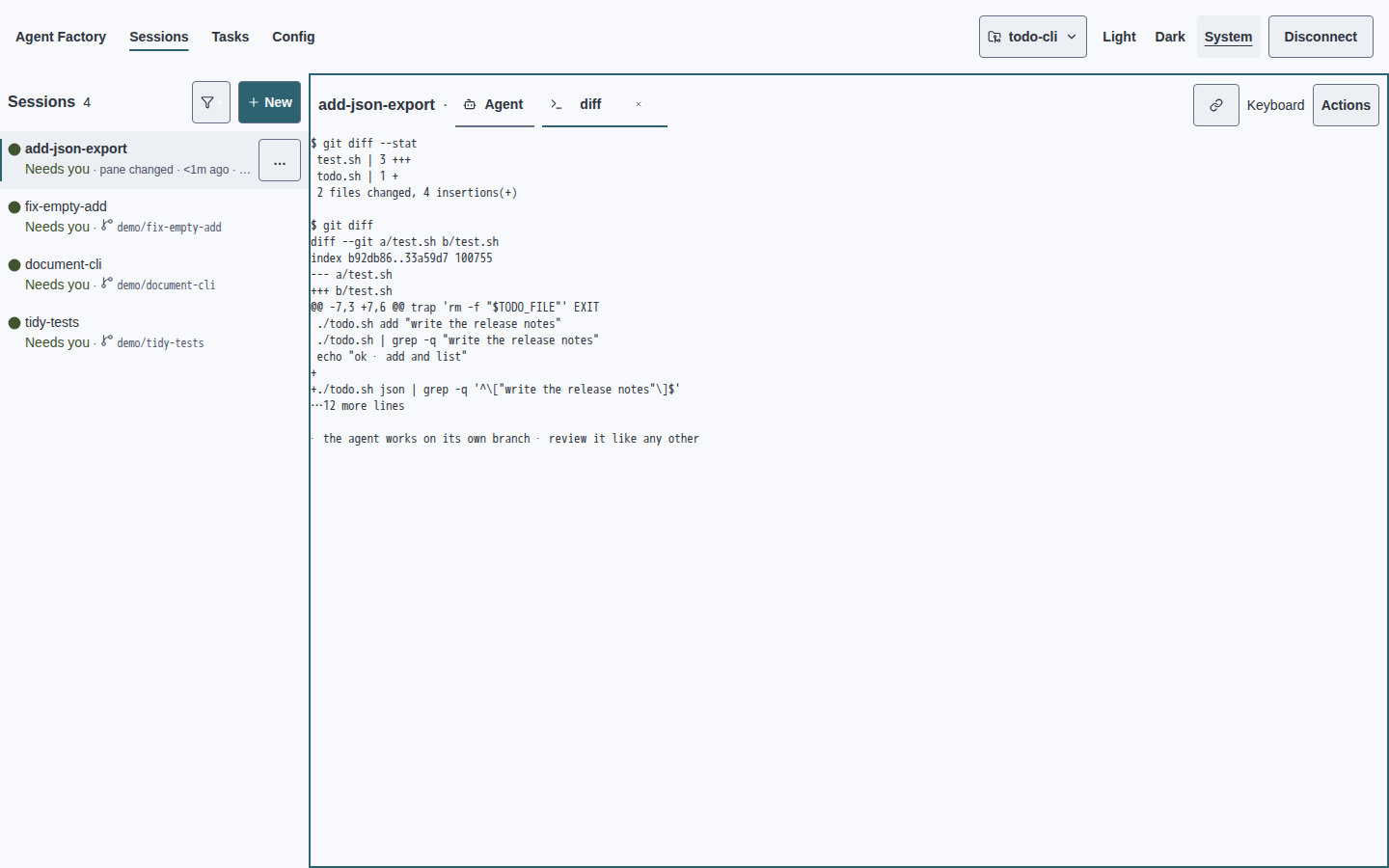
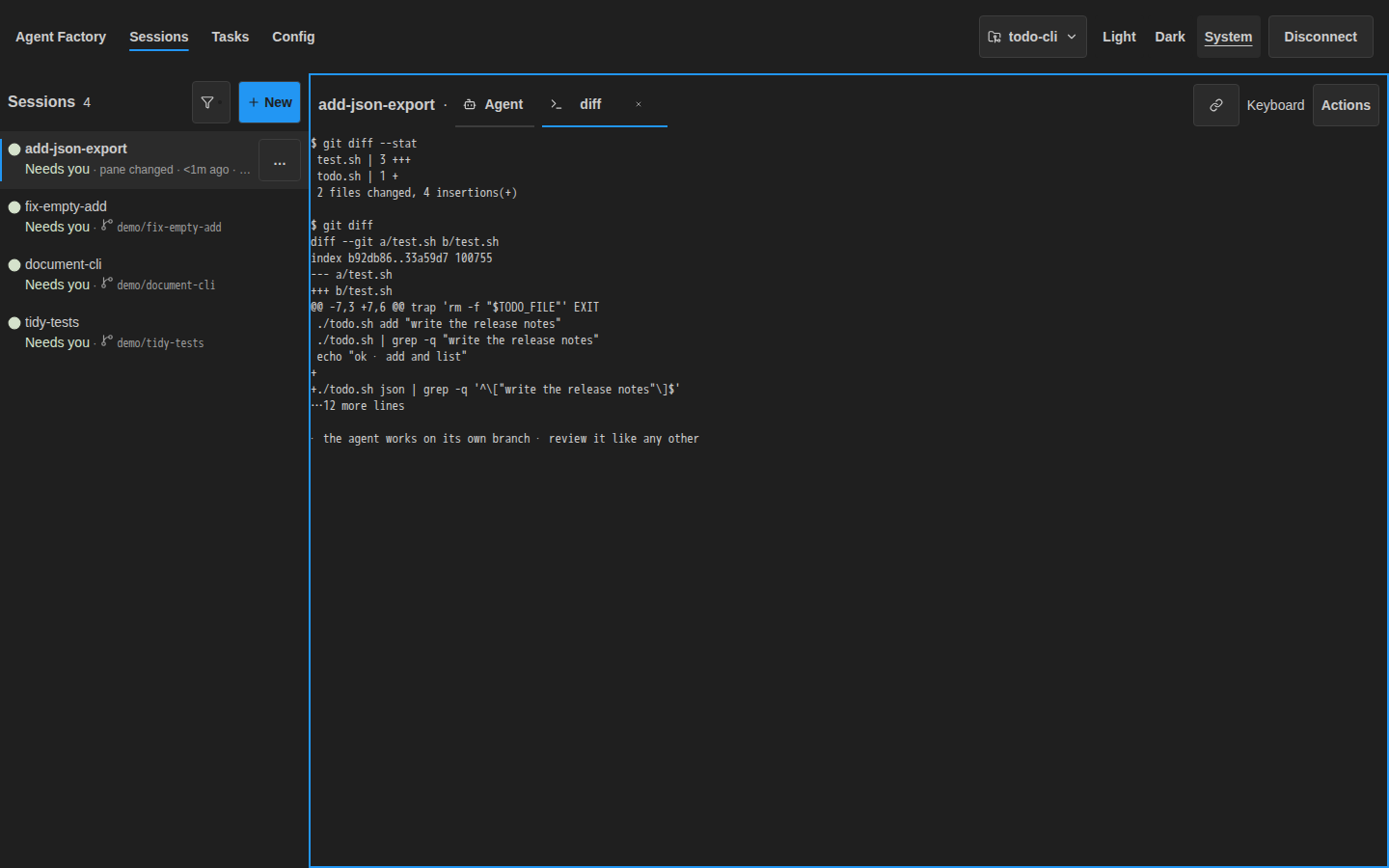
Click an existing process tab, such as diff in the still, to attach it. To
inspect changes yourself, choose Actions → + New tab → Terminal and run git diff in
the shell. The still's diff is terminal output, not a separate diff-view control.
Tabs run in the session's worktree. Click Agent to return to the agent.
Actions → + New tab also offers VS Code, which opens an editor for the worktree; see VS Code tabs for the required host editor. The × on a deletable tab opens a confirmation naming the tab and session; the Agent tab cannot be deleted independently. Confirm with Delete tab or choose Cancel. Hiding a pane leaves the tab available; deletion requests runtime cleanup. Double-click a process, web, or VS Code tab's label to rename it. Drag a tab onto a pane edge to split that pane, or onto its center to replace the displayed tab.
There is no nine-tab limit: the strip scrolls as it fills. In navigation mode,
t opens the New tab picker, where Terminal and VS Code appear when
supported. w asks to delete the active deletable tab, and 1–9 select a tab
without attaching. Clicking a tab selects and attaches it.
When a backend cannot create local tabs, the bar explains the restriction. Archived sessions must be restored before creating tabs. Agents can also create web tabs for dev-server previews through the CLI or API; these do not appear as a creation option in the menu.
Tasks view
Choose Tasks in the app bar to manage automations for the selected project.
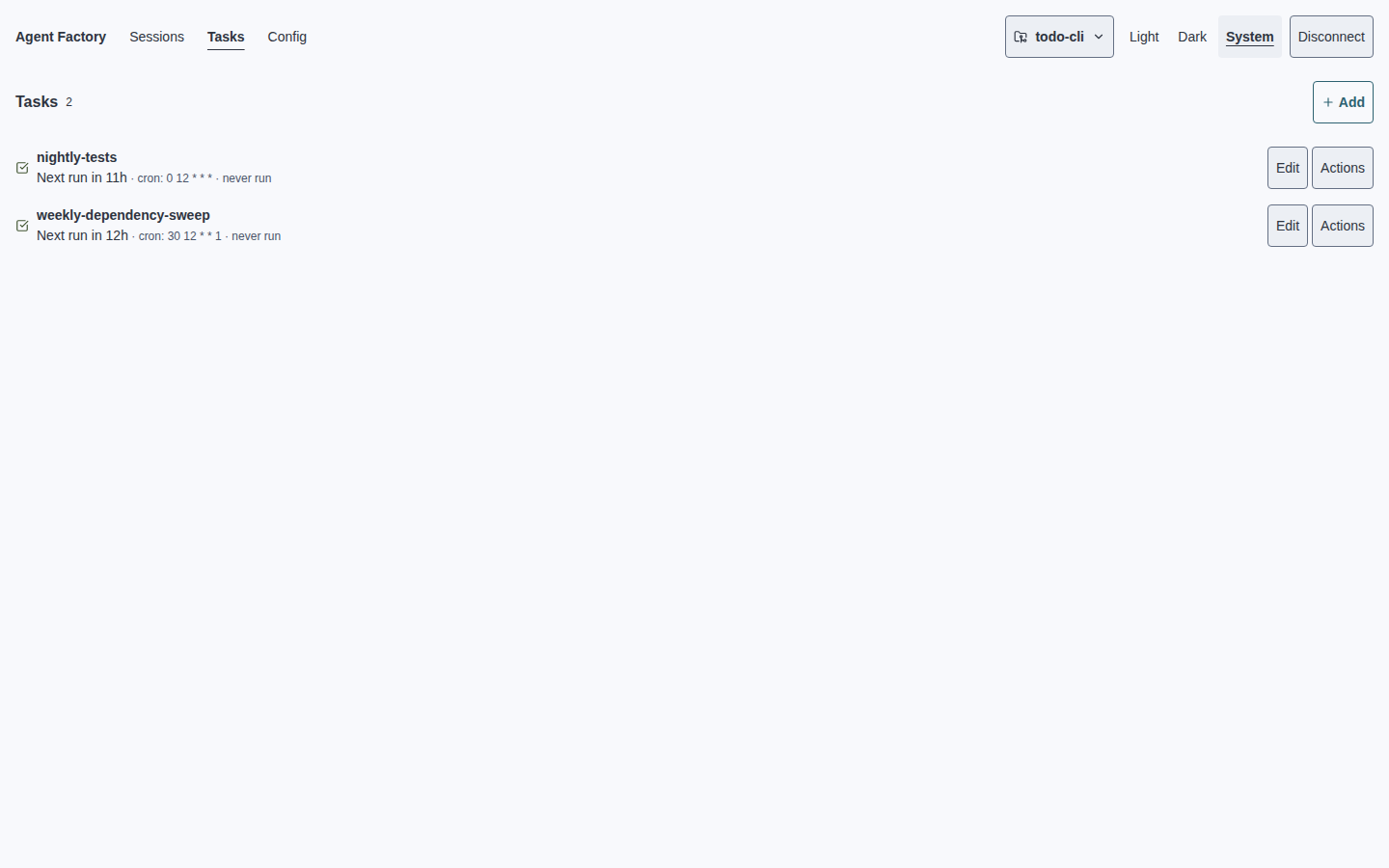
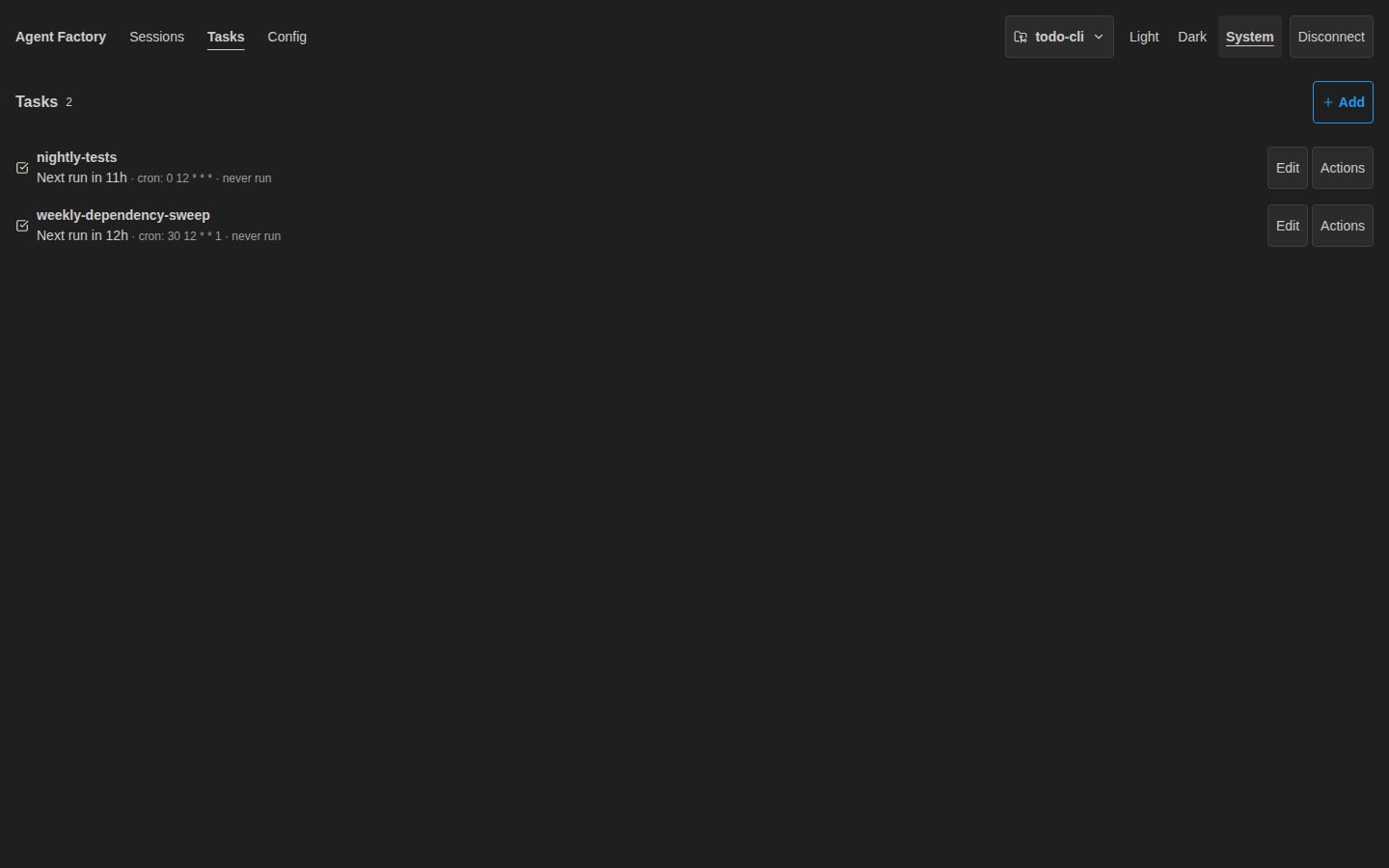
Each row shows its name, cron schedule or watch command, optional target session, arming or next-run information, and last-run outcome. A checked square means enabled; an empty square means disabled. A health mark can replace the enabled tick, with explanatory text in the row.
| Control | Action |
|---|---|
| Actions → Enable · Disable | Turn the task on or off. |
| Edit | Open the existing task's form to change it. |
| Actions → Trigger | Run an enabled cron task now; absent for watch and disabled tasks. |
| Actions → Remove | Delete the task after confirmation. |
| + Add | Open a form to create a task. |
In the form, enter Name, choose Project, and choose a Trigger. A
Cron schedule uses a schedule picker with time, interval, or weekday controls
as appropriate; Custom (cron) accepts a raw cron expression. Watch command shows
a command field instead. Prompt supplies the instructions (required for cron);
a watch prompt may use {{line}} for the matched line. Target session is
optional; Program selects the agent for a new session. On done chooses
Keep, Archive or Kill for a session spawned by the task; its hint explains the
consequence. A task targeting an existing session cannot apply that cleanup.
Submit with Add or
Save, or leave with Cancel. Invalid values show an inline error.
See Tasks and automation for scheduling semantics.
Config view
Choose Config to edit global settings on the daemon's host. The header names
the config.toml being written; switching projects does not change this scope.
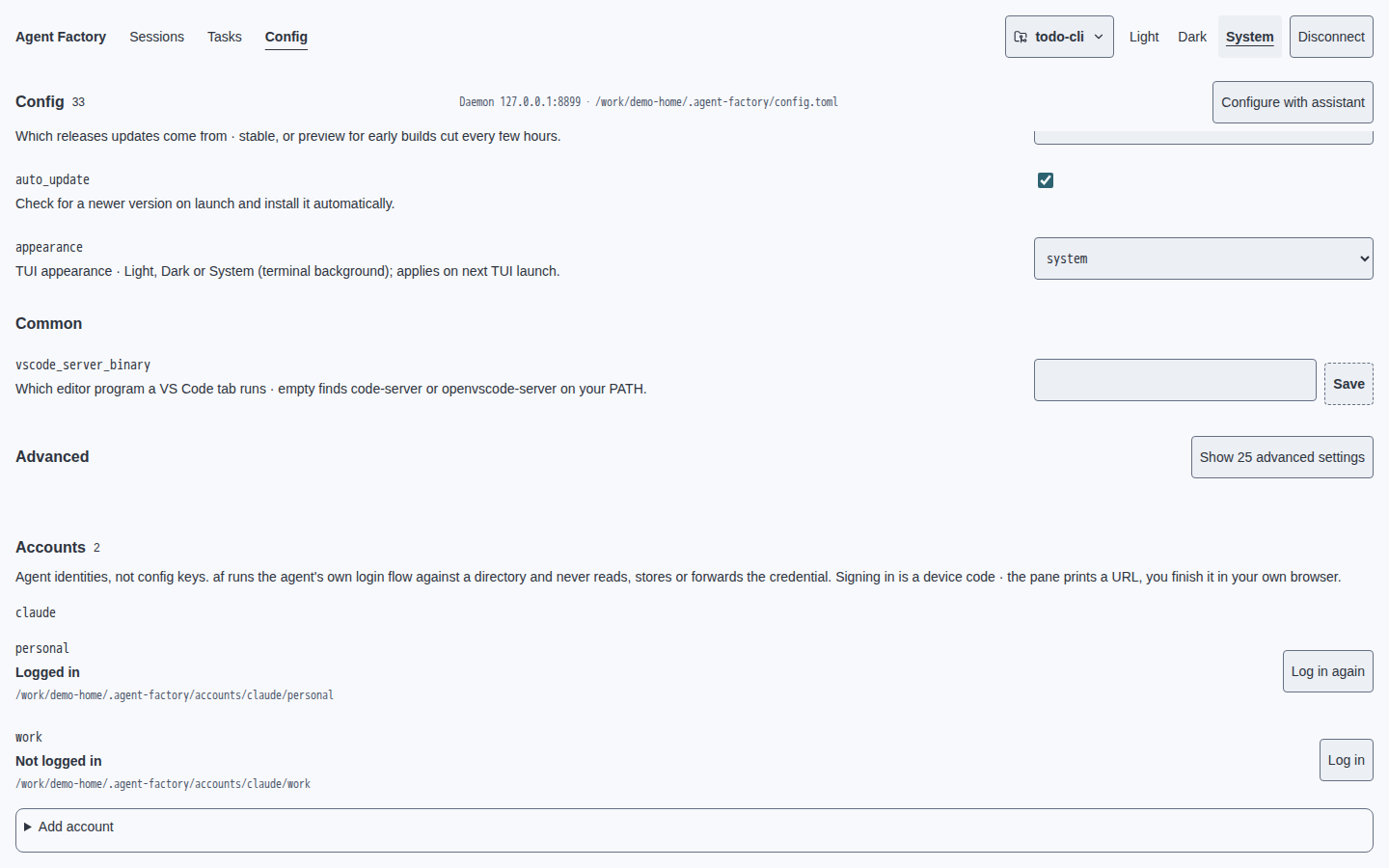
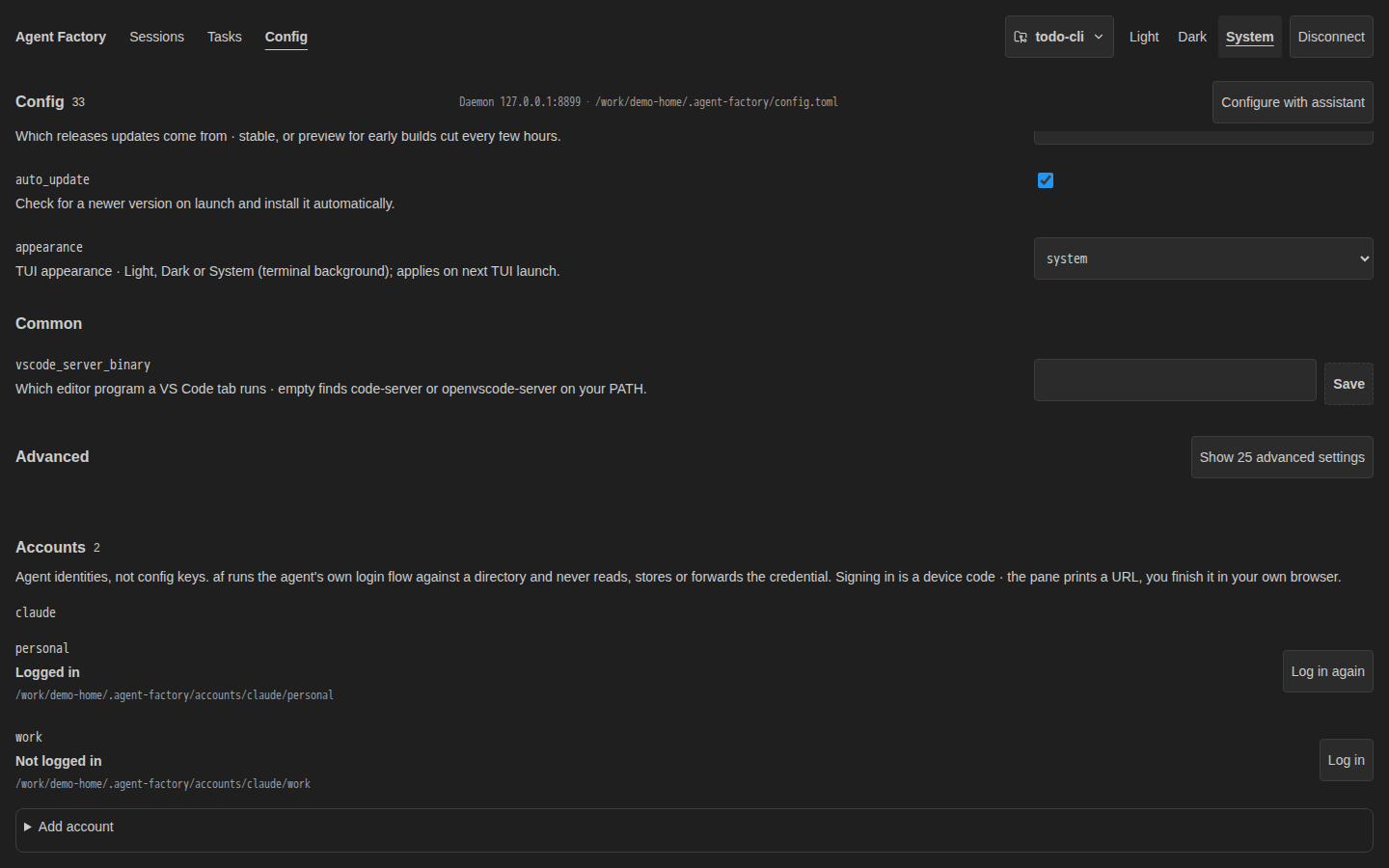
Settings are grouped in the daemon's tier order. Each row explains the key's purpose and shows its current value. Show N advanced settings expands the advanced tier; Hide advanced settings folds it again.
Checkboxes and dropdowns save when changed. For text or structured values, edit
the field and click its Save button or press Enter; unchanged values leave
Save disabled. Each write affects one key. The row shows either the saved value,
an applicable restart notice, or the validation error.
Configure with assistant opens a terminal overlay for conversational setup. Type your request there and use × to close it and return to the settings.
The Accounts section groups registered identities by agent and shows their names, credential directories, and Logged in or Not logged in state. Logged in means a credential file exists; it does not verify that the credential is valid or unexpired. These identities are managed separately from config keys. See Accounts for login, project defaults, Docker mounting, and identity boundaries.
Type a name in an agent's account field and click Register to create its credential directory. Log in or Log in again opens the agent's own login flow in a terminal on this page, running on the daemon host. Follow that pane's URL in your own browser and complete the agent-specific code step. Codex takes the device code in the browser; Claude and Gemini may ask for an authorization code in the pane. The flow writes the credential on the host; there is no credential-entry field in the web form. Close the login overlay with × when finished.
Accounts supported for session scoping are available in the new-session form's Account field. A registration-only account displays a notice that sessions cannot yet be scoped to it. Registration and login failures appear beside the relevant row.
To opt a project out of a global account default, set an empty project entry as described in Project accounts.
Beyond localhost
Listener and remote access
The default network.listen_addr is 127.0.0.1:8443: the browser client and JSON
API share a plain-HTTP listener. An absent key inherits that default; explicitly
setting network.listen_addr = "" disables the listener. Listener settings are
global-only. Apply changes with af daemon restart.
For remote use, keep loopback and forward the port over SSH, or configure a network bind with authentication and transport protection. Follow Remote daemon access for the commands, CORS settings, reverse proxies, and TLS setup.
The auth model
By default, network.require_token = false, so any peer that can reach the
listener gets full control without a token. Loopback binding keeps that access
on the host; it does not separate the host's local users.
With network.require_token = true, network peers must authenticate. Loopback
peers are exempt only on a loopback-bound listener, unless
network.require_loopback_token = true too. A network-bound listener enforces
the token even for a loopback-origin connection.
When required, the login screen asks for the daemon token. On the host, use
af token show, then paste the value and click Connect. The browser stores
it for that origin and reuses it on reload. A rejected token is forgotten;
other connection errors keep it for a retry. Disconnect clears it.
Security notes
On a shared machine, enable both network.require_token and
network.require_loopback_token, or disable the listener. Before binding a
routable address, enable network.require_token; otherwise anyone who can reach
it has full control. The daemon warns about this combination but still serves it.
Use an SSH tunnel, private network, or TLS-terminating proxy for remote transport.
The daemon itself serves plain HTTP.
The token grants full access. Keep it private, use Disconnect on shared
browsers, and use af token rotate if it is exposed. Read the
remote access security notes before exposing
the listener or putting it behind a proxy.
Reference
Keyboard reference
These are the web client's bindings. Shortcuts for the rail and view switching
apply outside focused form controls and attached terminals. While attached, ctrl+]
detaches, and Alt+j, Alt+k, and Alt+w still act on panes. Other keys pass
through to the agent unless a modal or menu handles them.
| Key | Action |
|---|---|
j · k, ↓ · ↑ |
Move the Sessions rail selection without attaching |
Enter |
Attach the selected session in navigation mode |
ctrl+] |
Detach the terminal and return to navigation |
Escape |
Close an open modal or menu; otherwise pass through to an attached agent |
1–9 |
Select a tab in navigation mode |
t |
Open the New tab picker for the supported tab types |
w |
Ask to delete the active tab; confirm with Delete tab, or cancel; never the Agent tab |
[ · ] |
Cycle Sessions · Tasks · Config in navigation mode |
Alt+j · Alt+k |
Cycle pane focus in Sessions, including while attached |
Alt+w |
Close the focused pane in Sessions |
The web view-cycle and split-pane chords are defined by the browser client; the TUI has its own keyboard reference.
JSON API
The same listener serves the app at / and the API under /v1/. Use the
HTTP API guide for requests and authentication, and the
API reference for endpoints. A separate frontend server is
not needed.
Install it as an app
The client can be installed as a standalone app window. In a browser that offers installation, click Install app in the app bar to open its prompt. The button's × remembers a dismissal in this browser. You can also use the browser's own installation or add-to-home-screen controls where supported.
Why the install button is not showing
The button appears only when the browser offers an install prompt, the app is not already installed, and you have not dismissed the offer. A secure context is required: loopback HTTP and HTTPS qualify; plain HTTP on a LAN or Tailscale address does not. Use a TLS-terminating proxy for remote installation; see transport encryption.
What gets installed
The app uses the same daemon and page, with its own icon and standalone window. Browser chrome follows Light · Dark · System. The service worker caches the static shell, using the network first, so an unreachable daemon can show the app's connection-error screen. It does not cache API requests, event streams, terminal streams, or previews. Installing is optional.
Web tabs
The preview toolbar's Reload refreshes the frame; Open opens its target in a separate browser tab. A stopped dev server offers Retry in the fallback panel after you restart it.
Alongside terminal tabs, a session can hold web tabs — a tab that renders a site in an iframe instead of a terminal. The primary use is a live dev-server preview: an agent runs a dev server in its worktree and injects a tab pointing at it, so you watch the app render in the browser as the agent builds it.
Web tabs are created from inside a session (by an agent or by you) with the CLI/API — they are not in the tab bar's New tab menu, because their target comes from whatever the agent is running rather than from anything the UI could ask you for (a VS Code tab, which always targets the worktree, is in that menu):
# a local dev server on port 5173 (Vite/Next/CRA/…)
af sessions tab-create my-session --kind web --port 5173

# any URL (localhost or external)
af sessions tab-create my-session --kind web --url http://localhost:3000
af sessions tab-create my-session --kind web --url https://example.com/docs

# a target may point at a specific page, not just a server root
af sessions tab-create my-session --kind web --url http://localhost:8899/viewer.html
How the target is rendered depends on whether it is local or external:
- Local (
--port,localhost,127.0.0.1,::1): the daemon reverse-proxies it under a same-origin path (/v1/webtab/…), and the web UI iframes that. Because the daemon shares the machine with the dev server, the preview works even when you view the web UI remotely (over Tailscale or an SSH-forwarded port) — a rawlocalhostiframe would otherwise hit your machine, not the daemon's. Same-origin also sidesteps the dev server'sX-Frame-Options. Only loopback targets are proxied — the daemon never proxies an external host, so it can't be turned into an open proxy. - External (
https://…): the web UI iframes it directly (never through the daemon). This is best-effort: many sites sendX-Frame-Options/frame-ancestorsand the browser blocks embedding. af does not try to defeat framing protections — every external web tab carries an always-present Open link (the guaranteed escape hatch), and if the site does not load in time (slow / unreachable) the tab shows a clean fallback panel with an "Open in a new tab" link.
In the TUI a web tab shows a placeholder (the target URL + "view in the web
UI or open in a browser") — a terminal can't render a browser. Tab navigation
(1–9, the sidebar tree) treats it like any other tab.
A web tab is pure metadata — a URL, with no process behind it — so it
outlives anything that tears processes down: it survives a daemon/af restart
and it survives archive → restore with its target intact (unlike
shell/process tabs, whose processes are torn down at archive time and do not come
back). If the target is down when you restore, the tab renders the same
unreachable-target fallback it would at any other time — start the dev server
again and reload.
While a session is archived its web tabs are preserved but inert: the tab
shows an "archived — restore it to load this web tab" placeholder instead of
loading, the daemon refuses to proxy its target, and the tab can't be deleted (so
the URL is still there when you restore). This is deliberate — the stored target
is a bare localhost:PORT from whenever the tab was created, and by the time you
come back that port may belong to something else entirely. af sessions restore
brings the tab back to life.
How the proxied URL maps to the dev server
The proxy serves the dev server under /v1/webtab/<session>/<tab>/, and the
browser-visible path mirrors the dev server's own path beneath it:
| target | browser URL | dev server sees |
|---|---|---|
http://localhost:3000 |
/v1/webtab/<s>/<t>/ |
/ |
http://localhost:8899/viewer.html |
/v1/webtab/<s>/<t>/viewer.html |
/viewer.html |
http://localhost:8899/app/viewer.html |
/v1/webtab/<s>/<t>/app/viewer.html |
/app/viewer.html |
Because the depth matches, the browser resolves the app's relative URLs
exactly where the dev server expects them — a sibling (x.css), a
parent-relative one (../shared.css), and a subdirectory target all
work, and a cookie the app scopes to a sub-path (Path=/app) rides on the
matching proxied requests. Requesting the tab's bare root redirects to the
target's path, so the URL mirrors from the first navigation on. WebSocket-based
hot reload is proxied on a best-effort basis.
Absolute asset paths need a per-tab preview origin
An app that hard-codes absolute asset paths (/assets/app.js,
/static/js/bundle.js) will not find them through the mirror path above. An
absolute path resolves against the origin root, so it escapes the tab's
prefix before the daemon ever sees which tab it belongs to, and the request
returns a 404 naming the problem rather than the web UI's own HTML (which
would be a silent, unexplained breakage).
It cannot be rerouted on this path, and not for a tunable reason: the mirrored
preview is framed with an opaque origin so a previewed dev server can never
reach the web UI or read its token, and a browser sends no Referer from such
a frame — there is nothing to attribute the request by.
There are two ways out:
- Turn on per-tab preview origins (below). Each tab gets its own origin whose root is the dev server's root, so absolute paths are correct by construction. Same-machine viewing only.
- Configure the dev server with a matching base path (Vite
base, CRA/webpackhomepage/publicPath, NextbasePath), or serve relative asset URLs. This is the option that also works remotely.
Per-tab preview origins
Set network.preview_listen_addr (for example
127.0.0.1:8444) and the daemon opens a second plain-HTTP port that serves
previews and editor origins only — never the control API. Each web tab is
then served from its own origin:
The tab's dev server owns that origin's root, so /assets/app.js resolves to
the dev server's own /assets/app.js with no base-path configuration and no
guessing. Because each tab is a distinct origin, the browser also
isolates them from each other and from the web UI: one preview's JavaScript cannot
read another's response (the preview port answers no CORS allow-origin header) and
cannot reach the web UI or its token. The hostname's opaque label is a per-tab
credential the daemon mints and verifies; it is held in memory and rotates on every
daemon restart, so preview URLs are not durable bookmarks.
What to know before turning it on:
- Same-machine only, and af checks rather than guesses.
*.localhostnames are resolved by the browser to its own loopback, so a per-tab origin only works when the browser can reach the preview port. Before switching a frame, the web UI loads a tiny probe page from that port and waits for it to report; if it does not, the tab silently keeps the same-origin mirror described above. That covers the case a location check alone gets wrong: underssh -L 8443:127.0.0.1:8443 remotethe browser's address ishttp://localhost:8443while the daemon is remote and the preview port is not forwarded. Forward the preview port too and per-tab origins start working through the tunnel; leave it unforwarded and nothing changes. - Browser support is handled the same way. Chromium- and Firefox-based browsers
resolve
*.localhostto loopback (RFC 6761); Safari does not. There the probe simply never reports and previews keep using the mirror — no configuration needed, and nothing to detect by hand. - Viewing remotely is unchanged. A Tailscale or SSH viewer keeps the
same-origin, sandboxed preview it has always had. Binding
network.preview_listen_addrto a network interface gains a remote browser nothing — it still resolves*.localhostto its own machine — but it is not therefore harmless.*.localhostis a browser convention, not a restriction on the port: anything that can reach the address can sendHost: <tab>.localhostitself, and on this listener a tab's hostname is the only credential checked. So a network bind turns every tab hostname into a network-reachable capability, and one that leaks through a log, a screenshot, or browser history stops being usable only from this machine. Editor tabs are withheld entirely while the listener is network-bound, and the daemon warns at start. Keep it on loopback unless you have a reason not to. - It is off by default. No second port opens unless you set the key, and a bind conflict is logged and skipped, never fatal.
VS Code tabs get one too — per session
A VS Code tab moves onto a per-session origin, not a per-tab one: there is one editor per session, so both of a session's editors sit on the same origin and share one state store, as they should.
This is a confidentiality fix, not an ergonomics one. code-server is VS Code Web,
which keeps workbench state in the browser's IndexedDB — and its terminal history
(terminal.history.entries.commands) is global, not workspace-scoped. On one shared
origin that means one session's Terminal: Run Recent Command offers another
session's commands, and Go to Recent Directory offers another session's checkout.
Those command lines carry branch names, paths and sometimes secrets, and it looks
exactly like your own history, so it never gets reported. Giving each session's editor
its own origin is what partitions that store.
Two consequences worth knowing:
- Editor origins require a LOOPBACK, fixed preview port. With
network.preview_listen_addrbound to a network interface (or to an ephemeral:0), web tabs still get per-tab origins but editors do not — they stay on the same-origin mirror. On that listener the hostname is the only credential, and a remote client can simply sendHost: <label>.localhostto the exposed port; behind an editor origin is a code-server running with auth disabled, i.e. a terminal. Since per-tab origins are same-machine only anyway, a network bind could never have served a remote viewer an editor, so nothing is lost by refusing. - A session's editor origin is stable across daemon restarts, unlike a web tab's.
It has to be: the editor's layout, open editors and history live behind that origin,
so a rotating name would wipe them on every restart. It is derived from a secret kept
at
~/.agent-factory/editor-origin-secret(0600, the same posture as the daemon token). Delete that file and every session's editor starts fresh. - Existing editor state does not migrate. Turning
network.preview_listen_addron moves editors to new origins, so layout and history start empty once. That old state is the shared store this fixes, so leaving it behind is the point.
The shared user-data directory is untouched — settings, extensions and themes still carry across every session's editor, which is why af shares it in the first place.
Previews over a token-protected listener
Over a token-protected network listener, iframe sub-resource requests on the mirror path are kept authorized via a path-scoped cookie (see Remote HTTP auth). If a preview loads only partially over a direct network listener, prefer an SSH-forwarded loopback port (which needs no token) — the common remote-preview path. Per-tab preview origins do not apply remotely.
A mirrored preview is sandboxed to an opaque origin, so it cannot reach the web UI
or read its token. A preview on its own origin is sandboxed too, but with a real
origin of its own (it needs one for localStorage, cookies and service workers) —
safe because the browser's own cross-origin rules already keep it away from the web
UI. A small reload control sits above every web tab for dev-preview refreshes.
VS Code tabs
A VS Code tab is a full VS Code editor, in the browser, opened on the session's worktree — so you can read and edit what an agent is building without leaving the web UI. It renders as a pane like any other tab, and works in splits and drag/drop.
Unlike a web tab it takes no target: the session's worktree is always what it opens. That is what makes it offerable from the tab bar's labelled New tab menu, which lists Terminal and VS Code. From the CLI:
code-server is not bundled — install it yourself
af detects an editor rather than shipping one. It looks for
code-server first, then
openvscode-server, on the
daemon's PATH. If neither is installed the tab still creates, and the pane
shows an install hint instead of an error — install the editor and reload the
pane. To point af at a binary outside PATH (or under another name), set:
This key is global-only: it names a binary the daemon executes, so a repo's checked-in config can never choose what af runs on your machine.
How it runs. The daemon starts one code-server per session — shared by
every VS Code tab and pane in it — the first time a pane renders, listening on
a 0600 unix socket in a 0700 directory under the af home (no TCP listener
at all). The browser reaches the editor through the daemon's /v1/webtab/ proxy,
which is what makes it work for a remote viewer (Tailscale/SSH) and what puts
the daemon's auth policy in front of that route. On a cold start the pane briefly
shows "VS Code is still starting…" and resolves itself.
The editor is stopped when its last VS Code tab is closed, and when the session is archived or killed — and on daemon shutdown, so nothing is left running. If it ever dies, the next render starts a fresh one. Nothing about it is persisted: the tab survives a restart and simply starts a new editor when you next open it.
--auth none, and why that is safe here
The editor runs with authentication off, because it is only ever
reachable through its 0600 unix socket, which is gated to your account by
filesystem permissions — the same posture the daemon's own control socket
has. Anything running as you can dial that socket; that same-user boundary is
the protection, not the proxy. Your browser reaches it through the daemon's
/v1/webtab/ proxy, so the daemon's auth policy applies to that route. It
runs as you, with your PATH and your code-server settings/extensions.
Note that a VS Code pane is deliberately not origin-sandboxed the way a web tab is: VS Code cannot run under an opaque origin. That is acceptable because the daemon controls what is served there (a code-server it started, on your worktree) — and that editor already gives whoever reaches it a terminal on your machine. Do not expose the daemon's listener to a network you do not trust.
In the TUI a VS Code tab shows a placeholder — a terminal can't render an
editor. Tab navigation (1–9, the sidebar tree) treats it like any other tab.